Install & first launch
Obtain Cue2
- Releases: download a build for your platform from the project’s GitHub releases or the website cue2.live.
- From source: see Building from source.
Unzip the package for your OS. Keep bundled native libraries next to the application when using exported builds.
First launch
- Start Cue2.
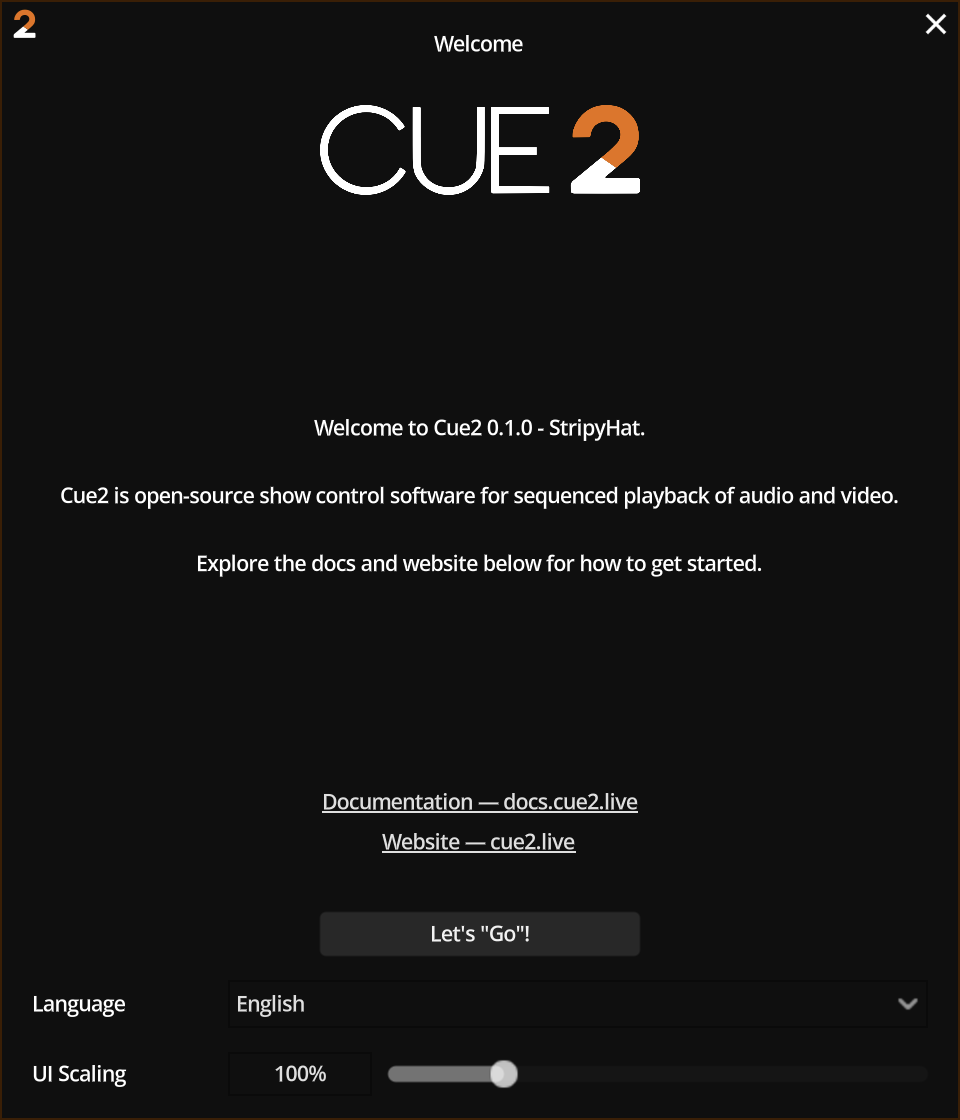
- On the first run, a Welcome window appears.
- Set language and UI Scaling if you want. These are app preferences (stored for your user account), not part of the showfile.
- When you are ready, press Let's "Go"!.
- The main workspace opens with an empty cuelist.
Later launches skip the welcome window. Cue2 may reopen the last show, depending on startup preferences.
User data location
Cue2 uses a custom user directory named Techmop/Cue2. Preferences such as keyboard Input Map, language, and UI scale live here, separate from .c2 showfiles. Session logs are in the logs subfolder.
| Platform | Typical path |
|---|---|
| Windows | %APPDATA%\Techmop\Cue2 — for example C:\Users\<you>\AppData\Roaming\Techmop\Cue2 |
| macOS | ~/Library/Application Support/Techmop/Cue2 |
| Linux | ~/.local/share/Techmop/Cue2 |
Sanity checks after install
| Check | Expected |
|---|---|
| About dialog | Shows application version and library attribution (including RtMidi) |
| Log | No fatal FFmpeg or RtMidi load errors |
| Settings → audio devices / patch | Devices list populates |
| Settings → MIDI | Input/output lists populate when hardware is connected |
| Drop an audio file | Cue appears; metadata/waveform can generate |
If media fails immediately, reinstall natives or rebuild with the export packaging scripts. See System requirements.