Control cues
Steps
- Create Cue A with audio or video so you can see/hear a change.
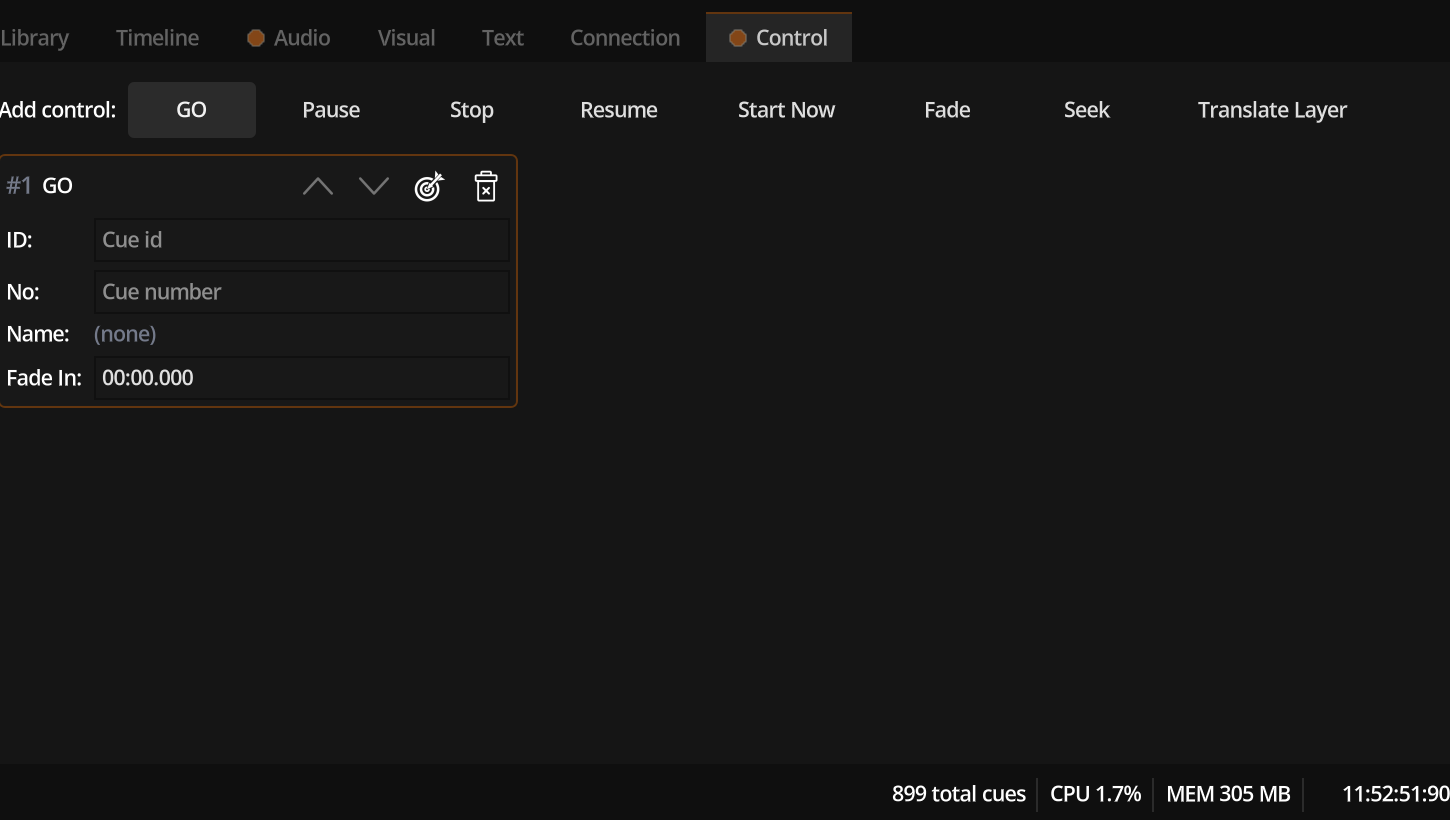
- Create Cue B as a control cue: add a Control component.
- Set action Stop (or Fade volume to 0 over 2 seconds).
- Target Cue A by id or cue number.
- GO A, then GO B.
Ideas
- Start now to punch out of pre-wait
- Seek for safety jumps
- Translate layer for simple motion on canvas layers
- Multiple control components on one shell for parallel actions