Zero to video
Show a video (or still image) on a house output.
What you need
- A video file or image
- At least one display you can use for output
Steps
1. Configure canvas and a layer
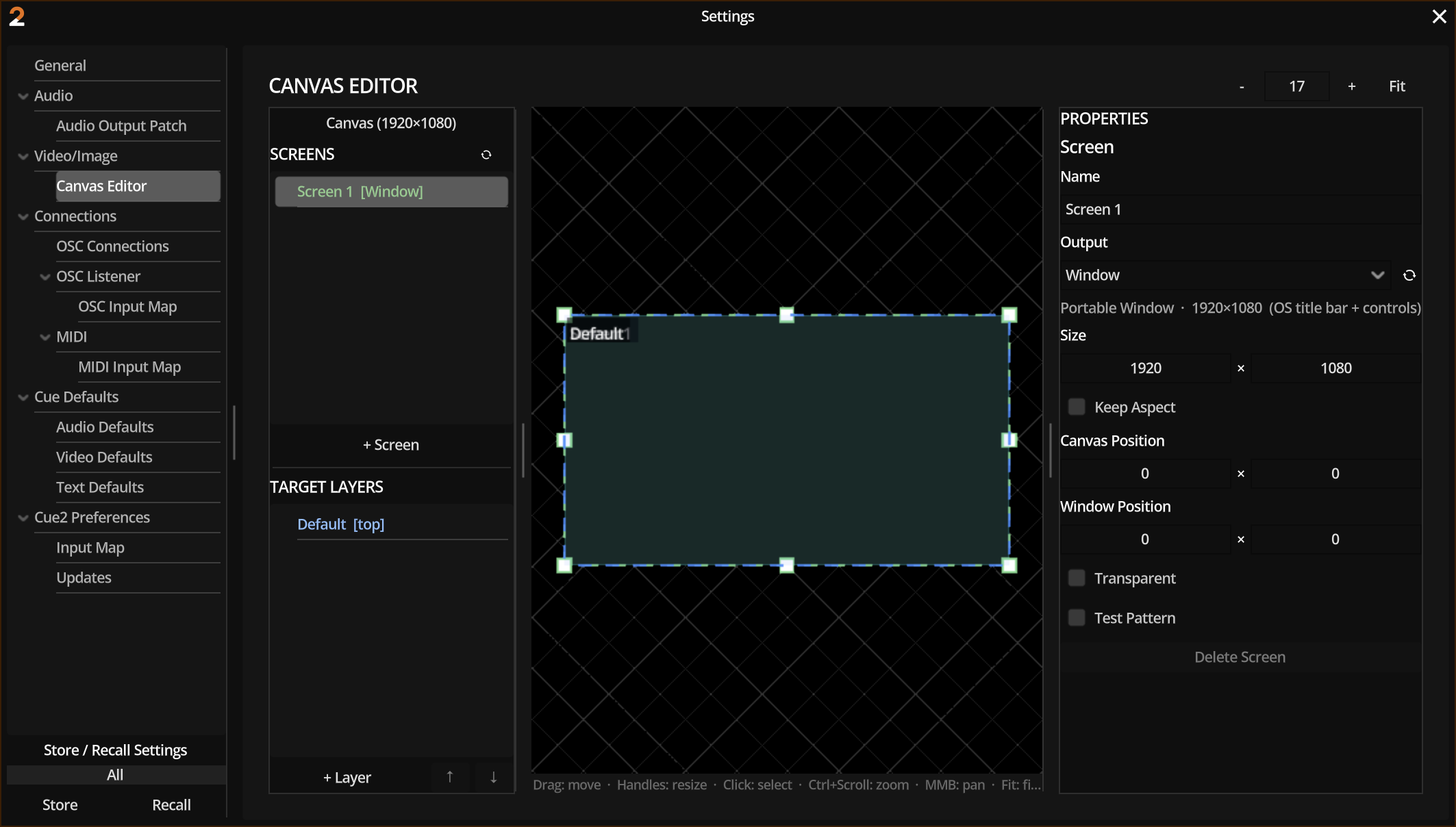
- Open Settings → Canvas editor.
- Confirm canvas size (default 1920×1080).
- Ensure a screen (output window) exists and is positioned on the canvas.
- Add a target layer if none exists; note its name/id.
- Optionally enable the test pattern to verify alignment, then disable it.
2. Add media
New session (if needed). Drop a video file on the cuelist, or add a video component manually.
3. Target the layer
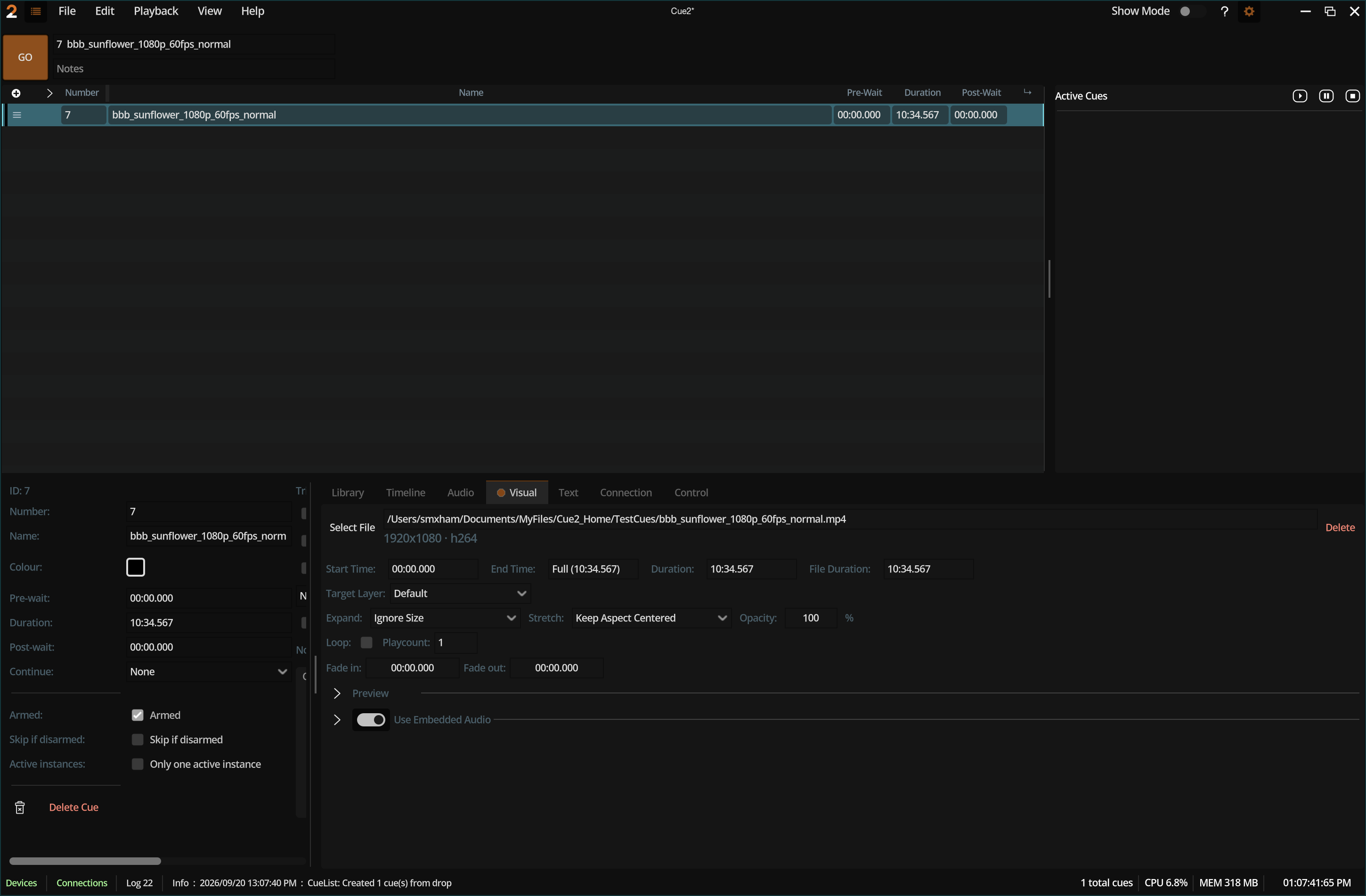
In the Video inspector:
- Confirm the file path.
- Set target layer to the layer you created (not “No Output”).
- Leave layout at defaults (letterbox-style fit) unless you need fill/stretch.
4. Show the output window
Output windows are created for configured screens. Bring the output to the correct monitor (fullscreen as needed for the venue).
5. GO
Select the cue → Space.
Still images
Images use the same video component path. Instead of in/out points, set a hold duration (0 means until stopped).
What you learned
- Canvas → screen → layer graph
- Video components must target a layer
- Outputs are separate from the editor window