Zero to audio
Play a sound file with a single GO.
What you need
- Cue2 running
- An audio file (WAV, AIFF, MP3, etc. — anything FFmpeg can decode)
- A working output device on your machine
Steps
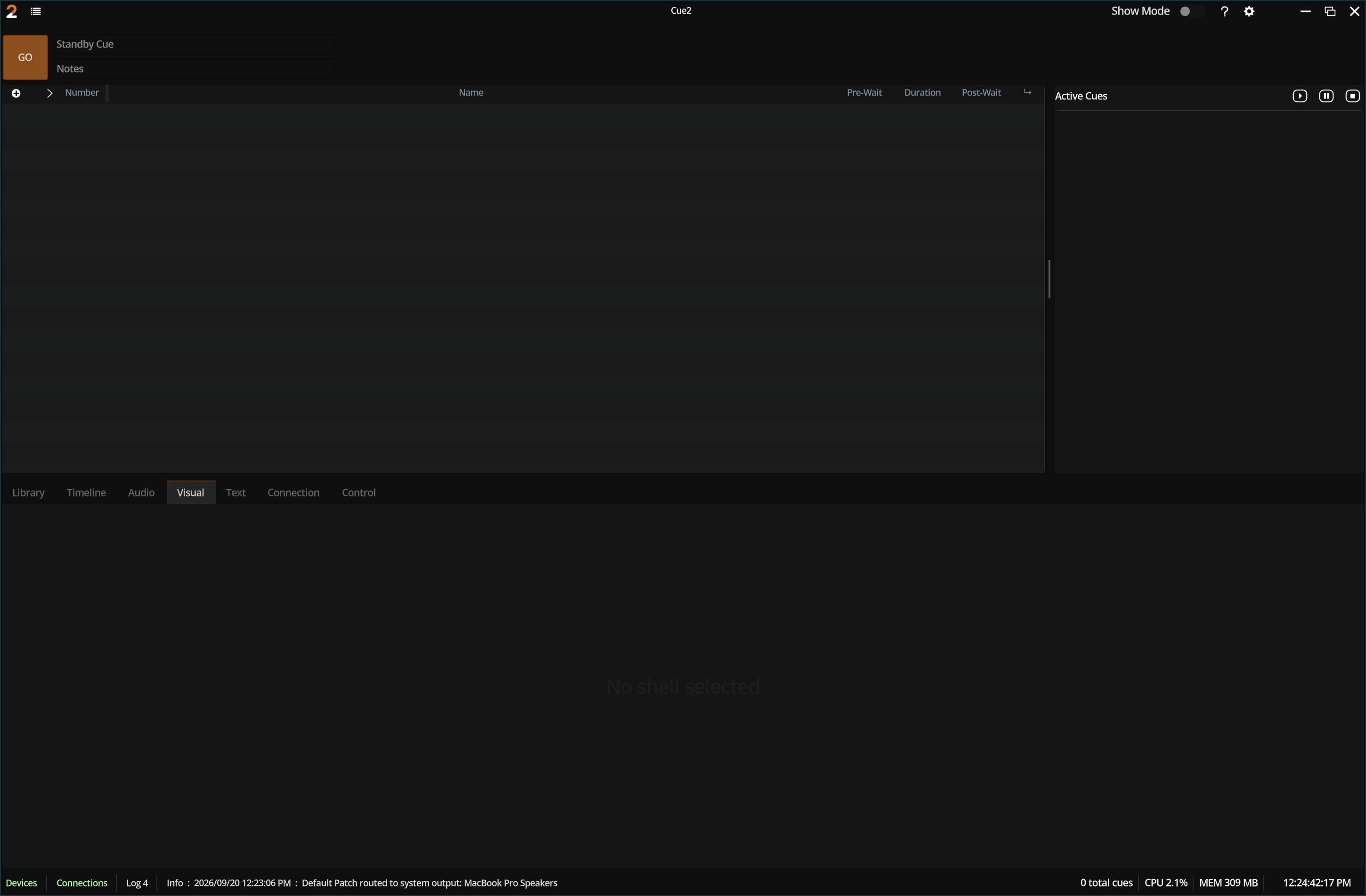
1. Start a new session
File → New Session.
2. Add a file
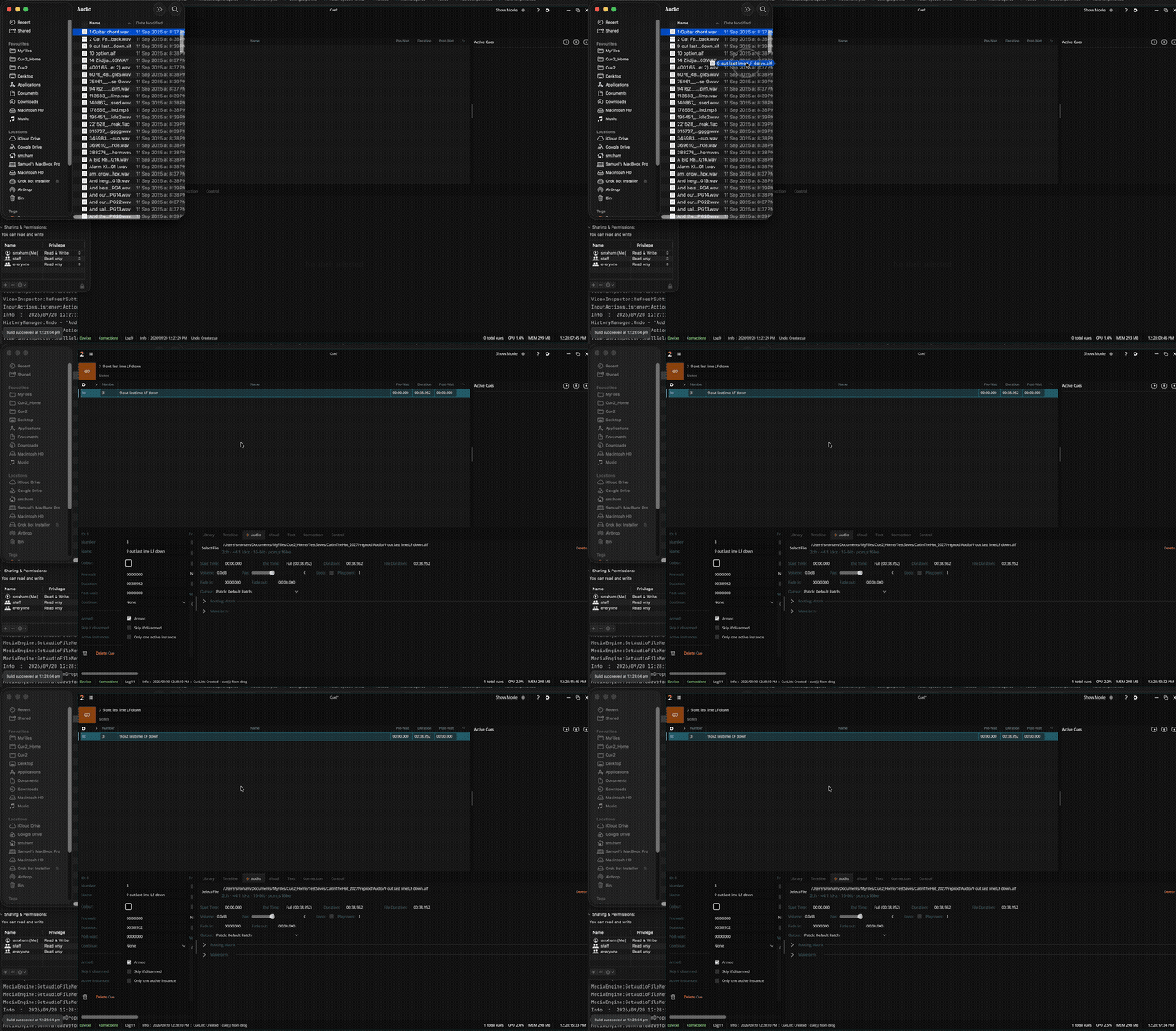
Drag the audio file onto the cuelist (or create a cue and assign the file in the Audio inspector).
Cue2 creates a cue shell with an audio component, reads metadata, and can generate a waveform.
3. Assign audio output
Open the Audio inspector tab.
- Open Settings → Audio output patch if you have no patch yet.
- Ensure the destination device is available/open.
- On the component, choose a patch (preferred) or direct output device.
Without an assigned output, the cue will not be heard.
4. GO
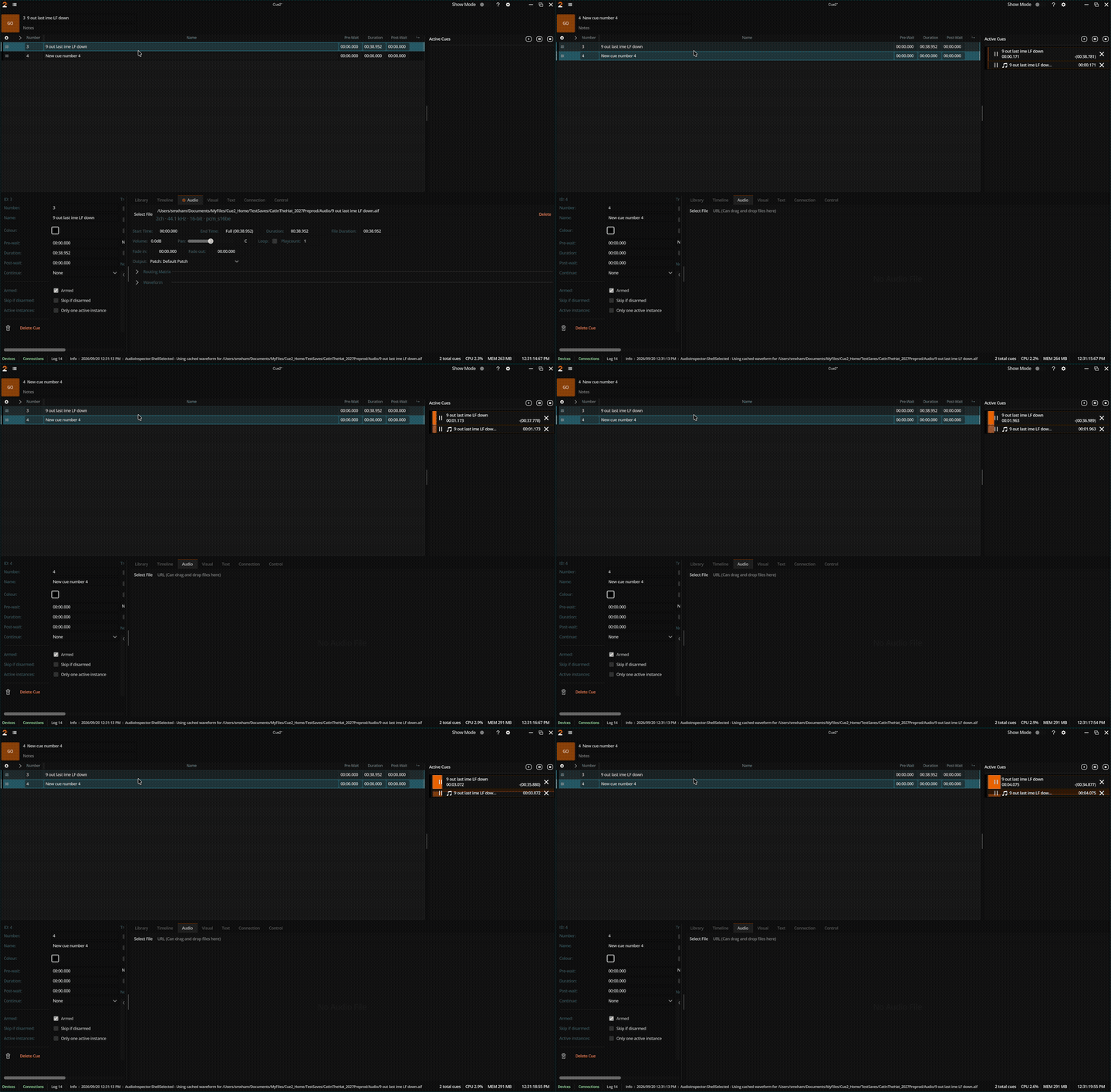
Select the cue and press Space (or click GO).
Watch the active cues area for progress. Adjust volume on the component if needed.
5. Stop
Press Escape (Stop all) or stop from the active list.
What you learned
- Dropping media creates components on shells
- Audio needs a patch or direct device
- GO / Stop all drive transport