Cuelist and selection
What the cuelist shows
Each row is a shell bar: number, name, follow mode, pre-wait, duration, post-wait, status, and chrome for drag, expand, and issues.
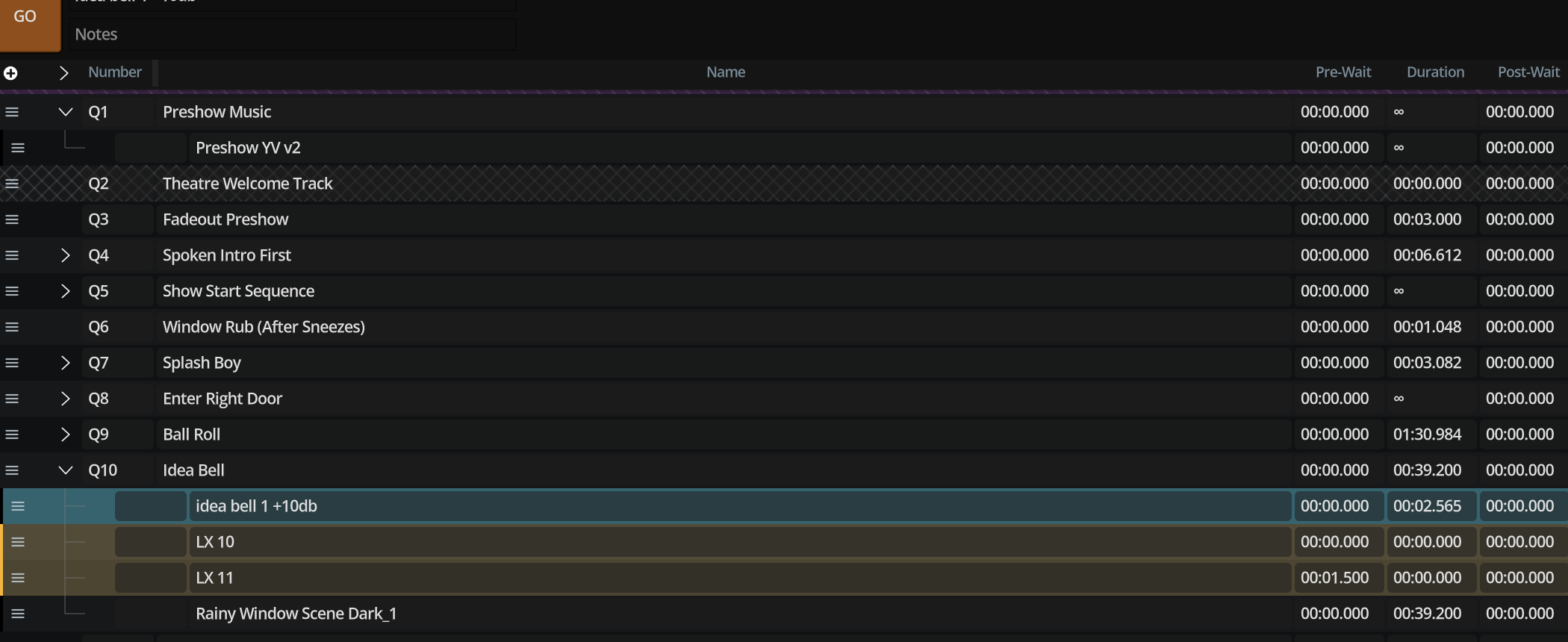
Columns and scale
- Number and time columns are user-resizable from the header.
- Cuelist scale (Small / Medium / Large) multiplies row height and chrome — UI only, not playback.
- Fixed chrome reserves space for drag handle, collapse chevron, type, and issue indicators so columns do not jump.
Selection
| Gesture | Result |
|---|---|
| Click | Select / focus cue |
| Modifier-click / box select | Multi-select (see app behaviour) |
| Up / Down | Select previous / next |
| Select all | All cues |
The focused cue drives the inspector. Multi-selection drives bulk operations (delete, group, multi-edit).
Multi-edit
When Multi-edit is enabled in General settings, changing certain shell properties can apply to all selected cues. Structural operations always use cuelist-level history.
Reorder and structure
- Drag shells to reorder.
- Nesting/parenting is managed via group operations and structure tools.
- See Groups.
Issue indicators
A shell may show an issue marker (for example missing media or incomplete routing). Fix the underlying problem in the inspector; the indicator clears when the cue is healthy.